Generate an original image, rework a photo or combine your own references. Start with the task you need to finish.
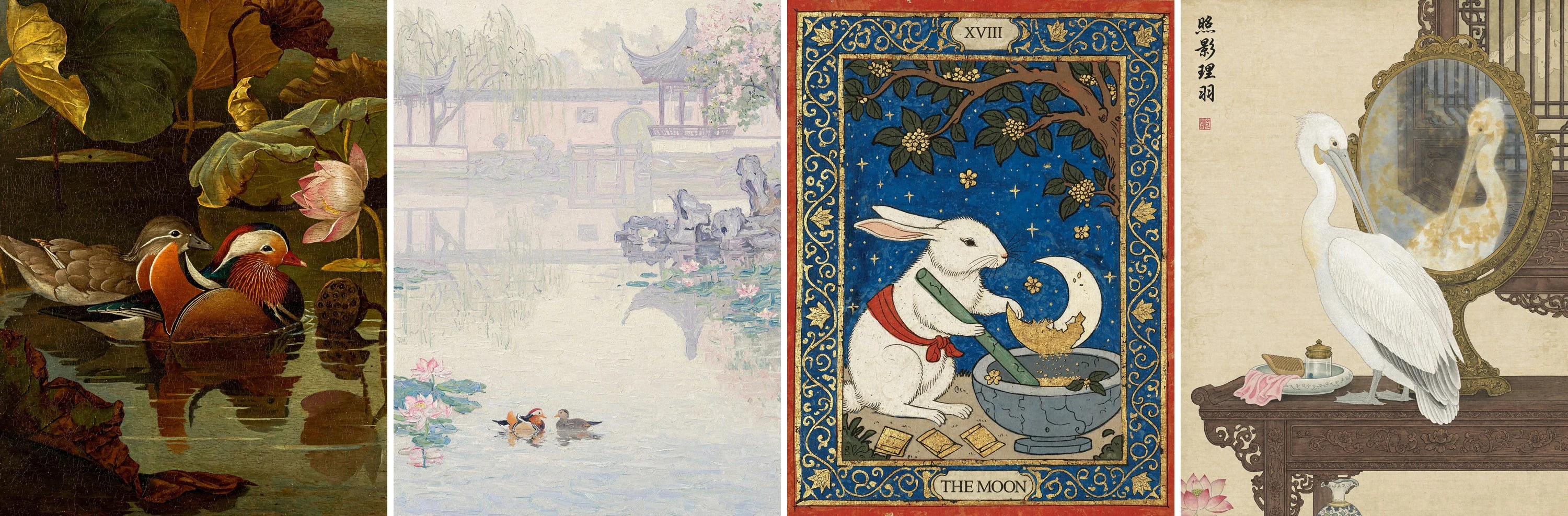
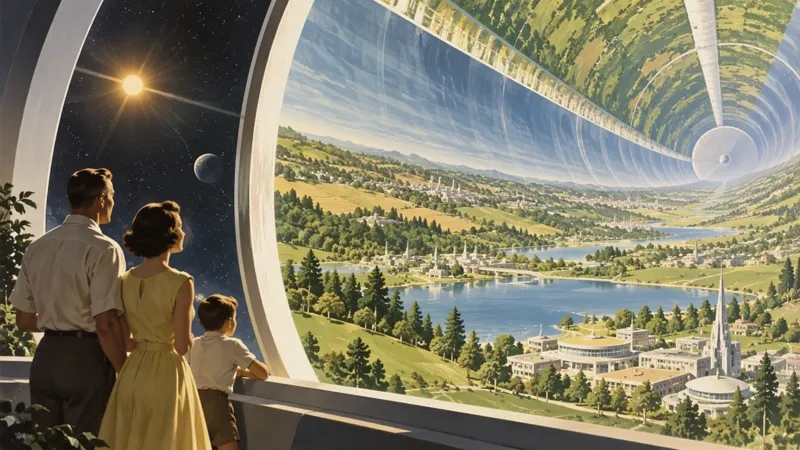
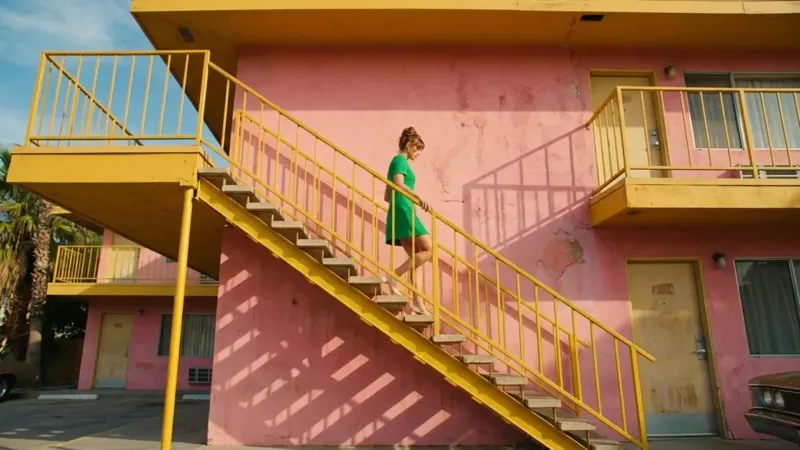
Surreal concepts · official MiniMax examplesPhotographic detail · official MiniMax examples
Create a campaign image from a short brief
Launching a product, posting an update or pitching a concept? Describe your subject, colors and mood. Try photographic, illustrated or surreal directions for the same brief.
Set the subject, setting and light. Then explore the visual direction.
Ask for negative space where your headline or logo needs to go.
See a starter prompt
A launch campaign image for a matte orange perfume bottle on a sculptural blue stone plinth. Hard side lighting, clean shadows, cobalt backdrop, negative space on the left for a headline. No text or logos.
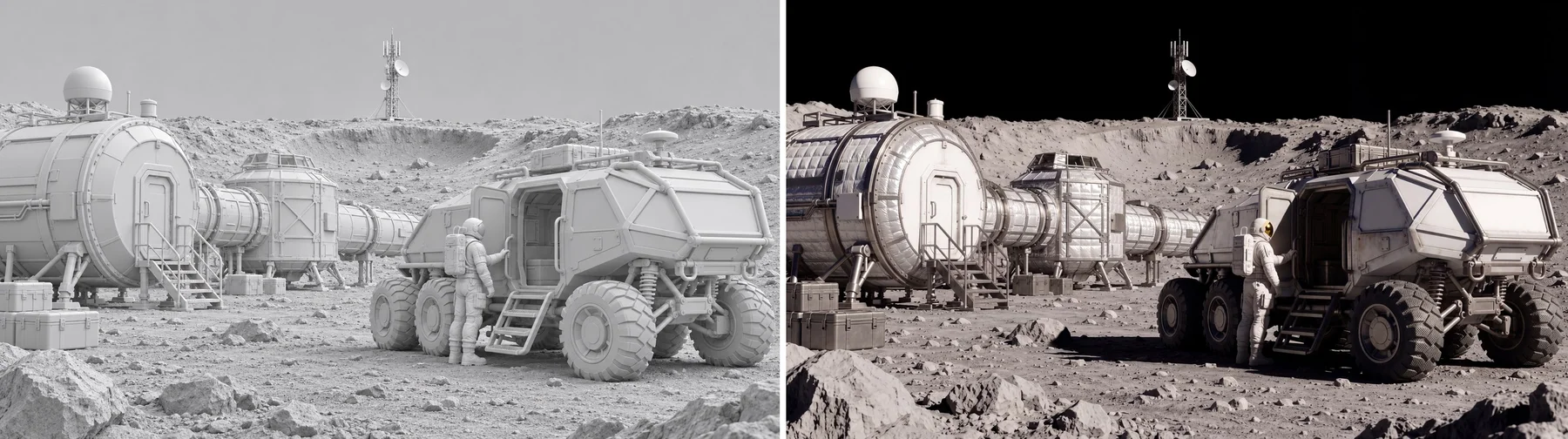
Rough model → finished render · official MiniMax example
Change the scene without starting over
Upload a photo, sketch or rough render. Ask for warmer lighting, new materials or a different background, and specify the composition and details you want to keep.
Specify the objects, composition and colors you want to keep.
Try one clear change at a time to find the version that works.
See a starter prompt
Keep the reference composition and object positions. Add realistic materials and natural lighting to turn it into a finished cinematic scene.
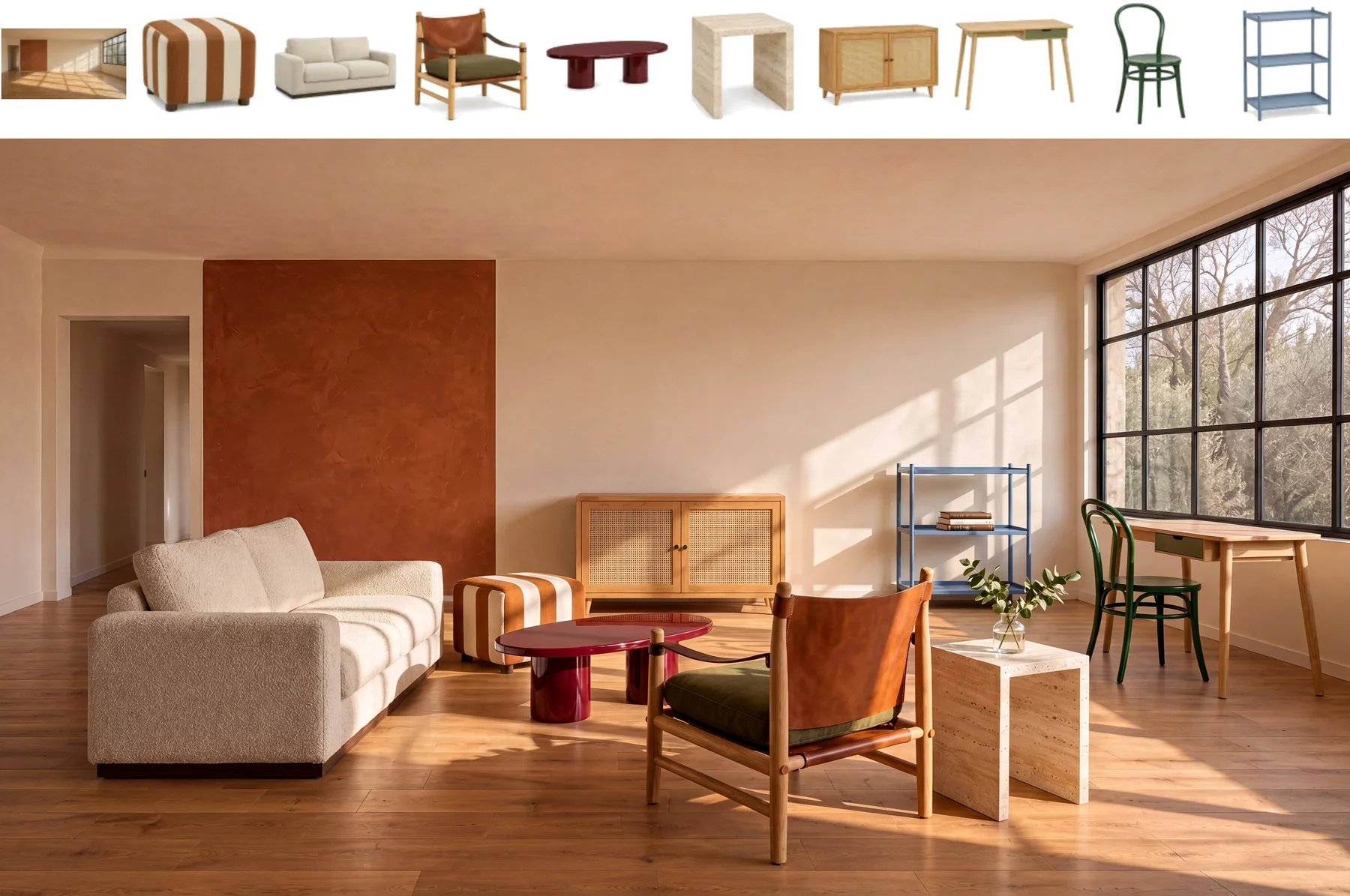
Individual furniture references → one room · official MiniMax example
See your product in a new setting
Combine product photos, furniture and setting references to explore a styled shoot or room proposal. Add up to 16 images and describe the role each one should play.
Give each reference a role: product, setting or visual style.
Describe placement, scale and lighting to guide the composition.
See a starter prompt
Place the supplied subject into the reference scene. Preserve its appearance and match lighting, perspective and scale.
Turn a short description into product shots, social posts, illustrations, character concepts or entire imagined worlds. MiniMax H3 Image also edits existing photos, so you can change a background, try a new style or build a scene around your own references.
2
Do I need to know how to write prompts?
Start with plain language: what is in the image, where it is and how it should look. Pick a suggested prompt if you need a starting point, then change the details to fit your project. Sign in, choose the model and size, and review the credit quote before generating.
3
Can I edit my own photos?
Yes. Upload a photo and describe what to change and what to keep. You can add up to 16 reference images to H3 Image, for example, a product, a setting and a style reference, to guide one composition. Each upload can be up to 30 MB.
4
Can I use other AI models in the same account?
Yes. H3 Image.art brings image and video tools together. Switch to GPT Image, Nano Banana, Seedance, Kling and other models from the model selector. Your account, credit balance and creation history stay in one place; available settings and credit costs vary by model.
5
How much does H3 Image cost? Is there a free trial?
Generation uses credits, with the quote shown before you submit. Compare subscriptions and one-time credit packs in Pricing. Any welcome credits or trial offer will appear in your account when available; browsing the examples is free.
6
Can I download high-resolution images?
H3 Image offers 1K, 2K and 4K output tiers with several aspect ratios. Choose a square image for a post, a portrait for a poster or a wide frame for a campaign. Download your finished image as a PNG from your creation history.
7
Which image size should I choose?
Choose the shape for where the image will appear: a square for a feed, a portrait for a poster, or a landscape for a website hero. Start with a smaller output while exploring a direction, then choose a higher resolution when you are ready. The generator shows the available sizes and credit quote for your selected model.
8
Should I generate a new image or edit a reference?
Start from text when you want to explore a new concept. Upload a reference when the product, composition or subject already exists. For an edit, describe both the change and what should stay the same; for multiple references, explain the role of each image.
9
Can I turn an image into a video here?
Yes. Open Image to Video, upload your image and choose a video model. Describe the movement you want, then review its available duration, resolution and credit quote. Image and video generations use the same account balance.
10
Where do I find and download my finished images?
Open your creation history in the studio to view task status and completed outputs. Open a finished image to download it. You can also use the image in another edit or upload it to an image-to-video workflow.
11
Are the examples made with MiniMax H3 Image?
The H3 Image examples are from MiniMax’s official showcase and link to the original source. Our suggested prompts are starting points for your own work, not the original prompts or a promise of identical results. The H3 Image.art brand cover is separate campaign artwork.
12
Is this MiniMax’s official website?
H3 Image.art is an independent AI creative studio, not MiniMax’s official website. It combines multiple providers in one workspace. MiniMax H3 Image is the model featured on this homepage.
13
Can I use my images for work?
You can create concepts for campaigns, products and client projects. Before publishing an output, check the provider terms and make sure you have the rights to your reference images, any depicted people and other material in the final image.
Have a brief? Put it into the picture.
Describe the subject, setting and style, or upload an image to work from. Choose your model and size, then review the credits before generating.