GPT Image 2.6 on Open AI Image

Turn a prompt into an image or upload a reference to guide an edit. Create with GPT Image 2.6 Flare.

Background · NASA Goddard / Jeremy Schnittman

Model overview

What Is GPT Image 2.6?

GPT Image 2.6 is the model family behind OpenAI’s Images 2.6 release, announced on November 4, 2026. It builds on GPT Image 2.5 with improvements to editing consistency, creative control and generation speed.

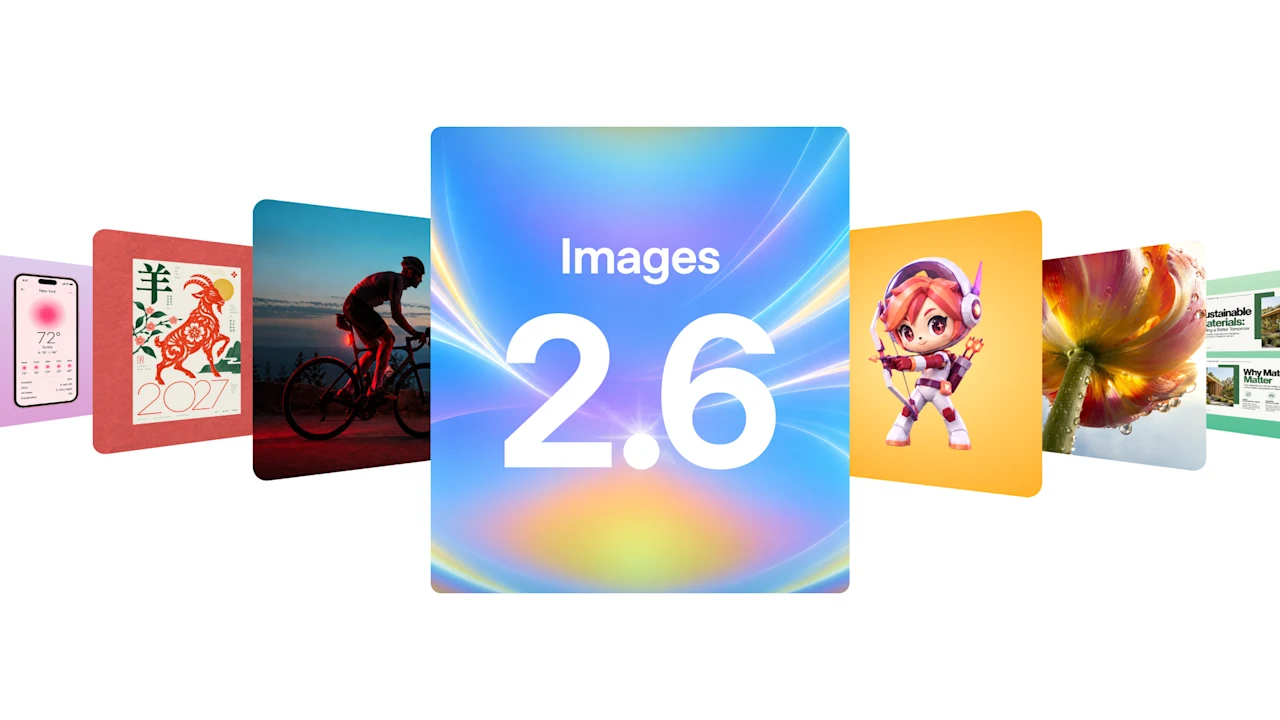
OpenAI Images 2.6 release artwork with an iridescent title card flanked by image examplesOpenAI · Images 2.6

One Release, Two API Models: Flare and Sunburst

The release includes gpt-image-2.6-flare and gpt-image-2.6-sunburst. Compare their official documentation for supported inputs, output settings and availability. This page introduces the official release; site generation availability is shown separately in the studio.
What is new

What Is New in GPT Image 2.6?

OpenAI’s release highlights directed edits, more consistent revisions and new ways to take a visual idea beyond a still image.

What is new01

Visual Ideas with More Creative Control

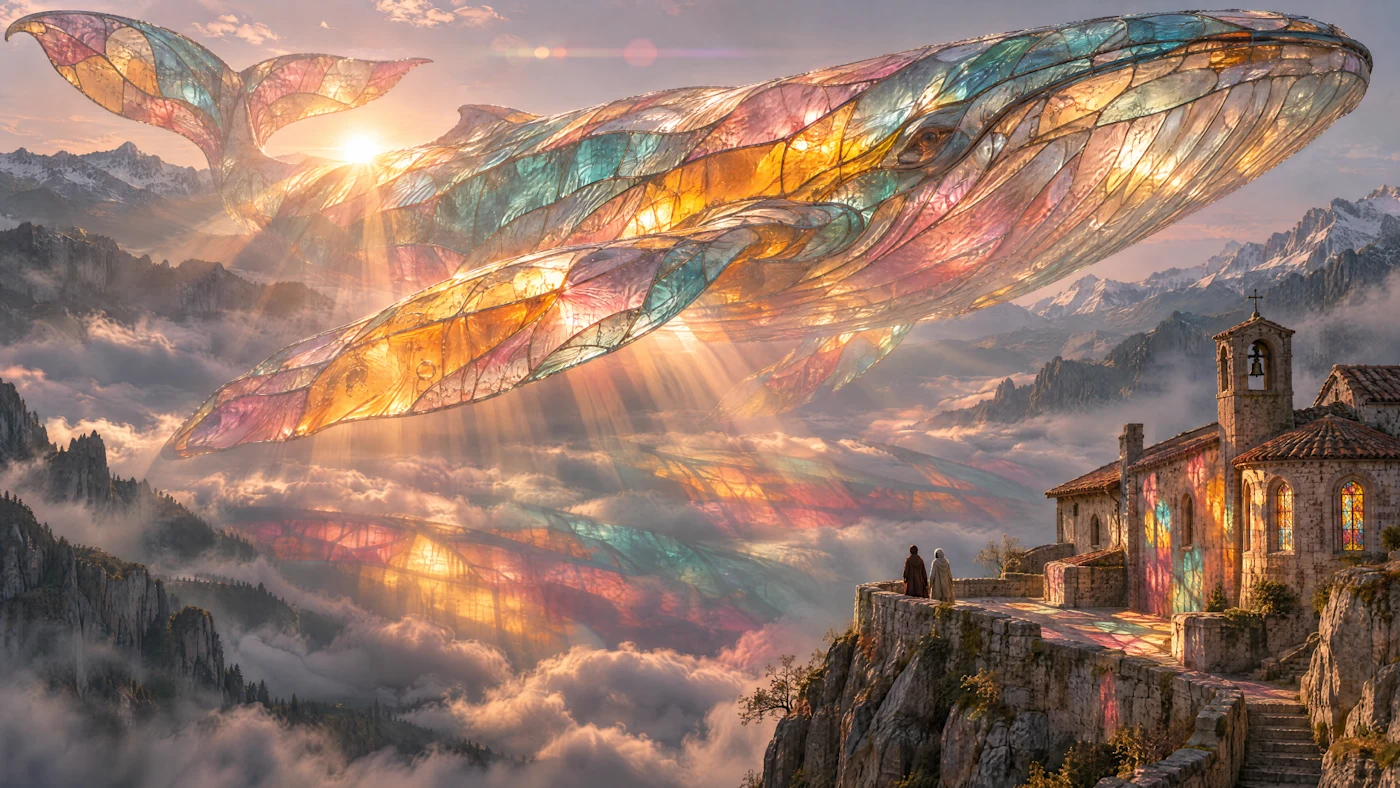
Give the image a clear subject, setting, light and composition. The Picsart glass-whale example illustrates how an imaginative brief can become a detailed scene. Official example: Picsart / OpenAI.

What is new02

Markup-Guided Image Editing

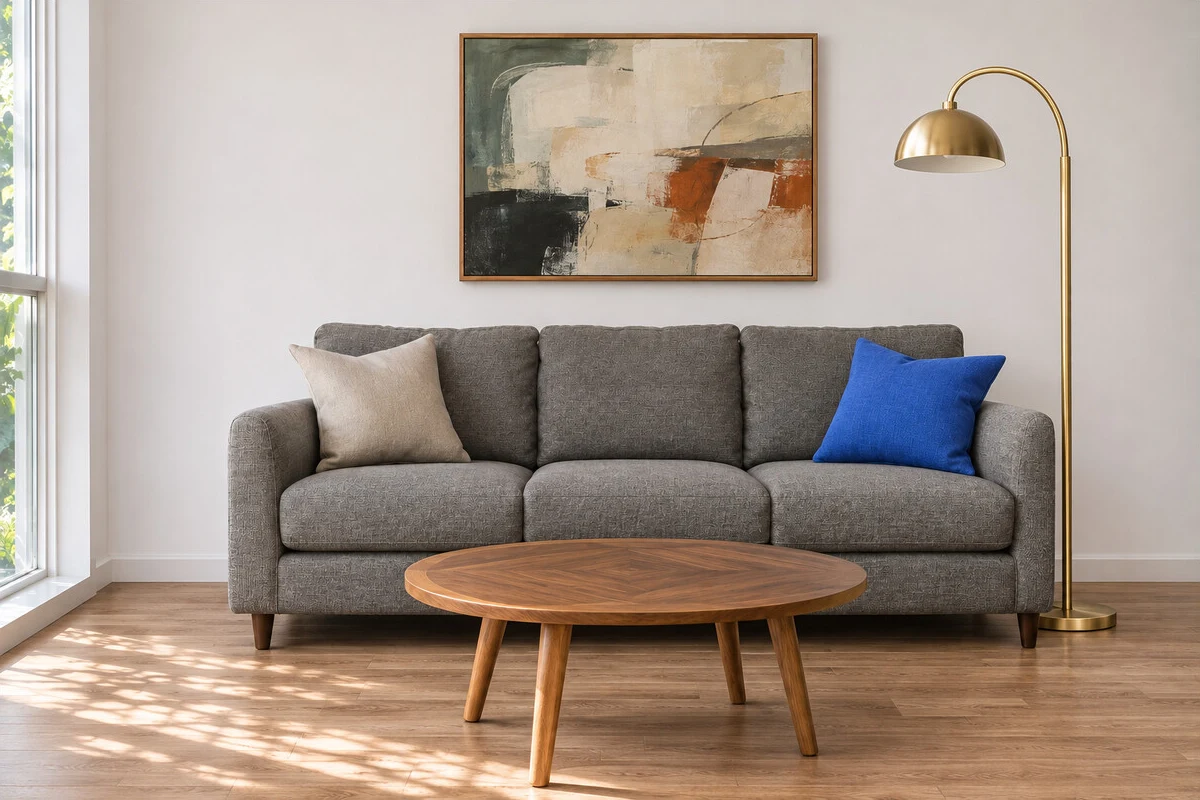
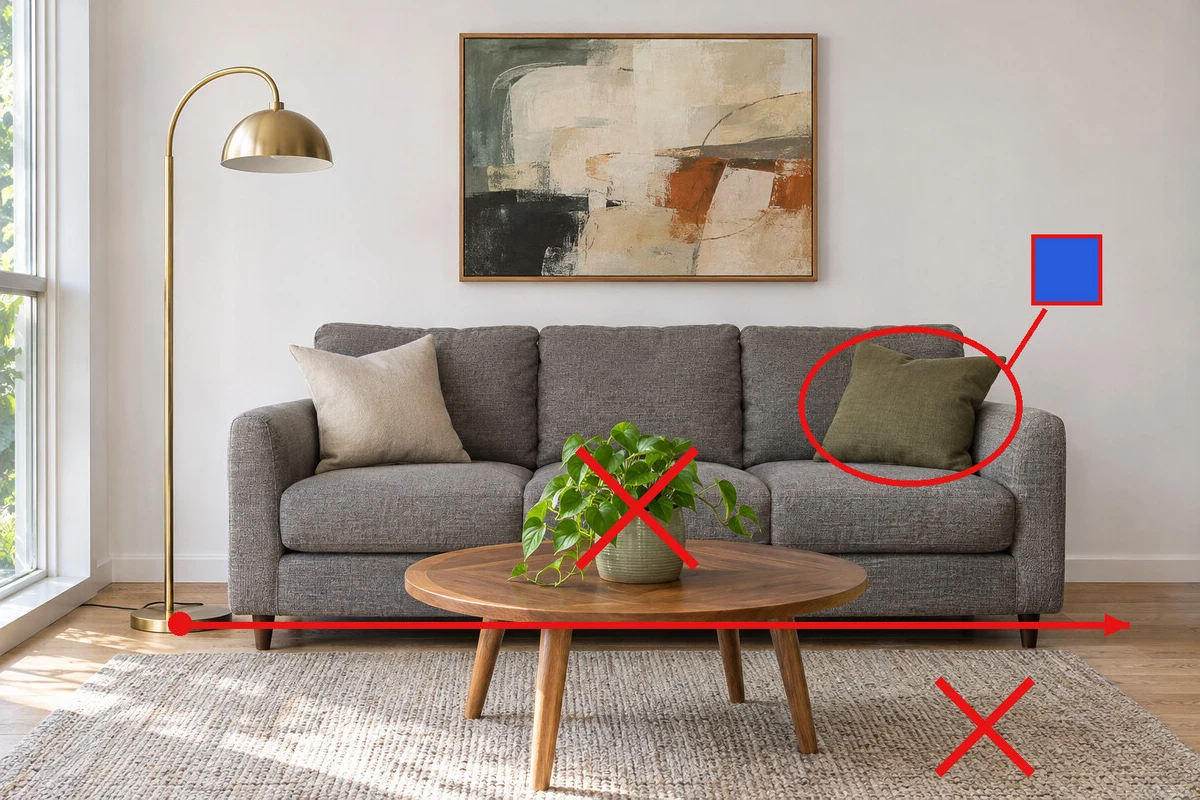
Mark the part of an image you want to change and describe the edit. The fal room example shows the visual brief before the requested revisions. Official example: fal / OpenAI.

What is new03

More Consistent Revisions

Review the edited room beside its marked-up reference. Keep the approved composition in your brief while changing a particular detail. Official result: fal / OpenAI.

What is new04

GIF Creation and API SVG Output

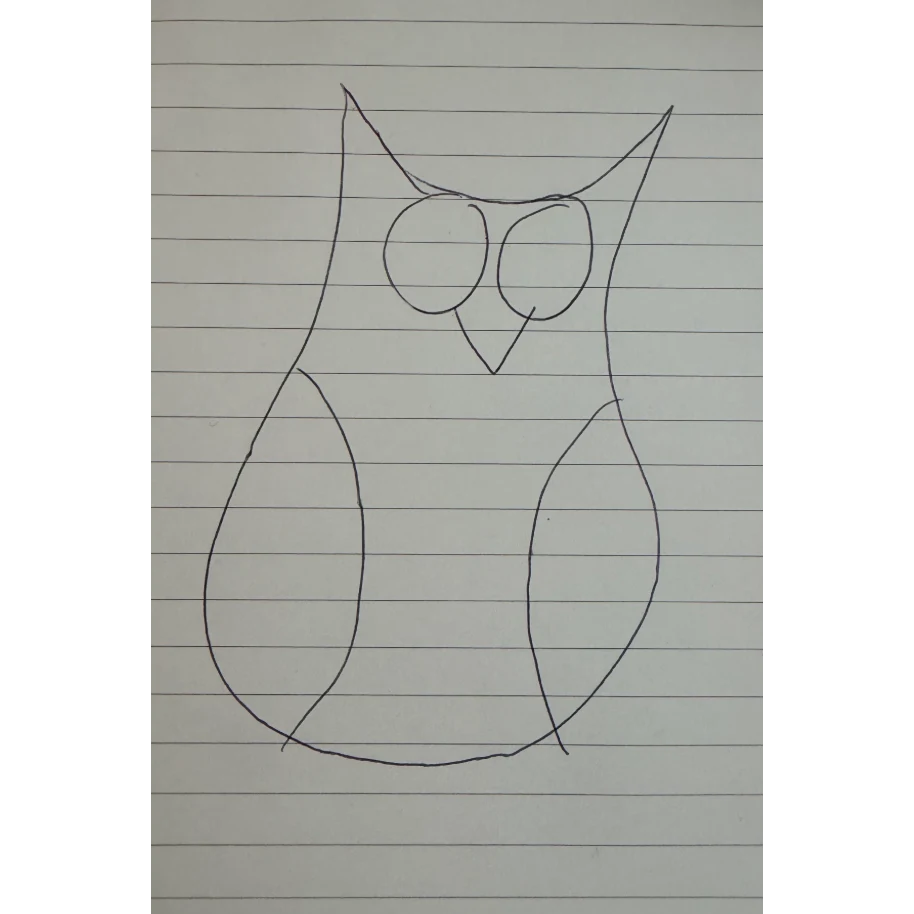
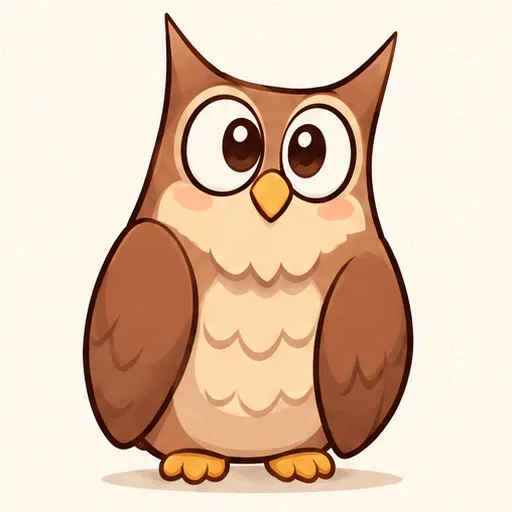
The official release includes GIF workflows and SVG output through the API. The owl is shown here as a static animation poster; open the source to see motion. Official example: OpenAI.

Four-step workflow

How to Create Images on Open AI Image

Choose GPT Image 2.6 Flare, describe the image, then check your settings and credit quote.

  1. Step 1

    Open the AI Image Generator

    Sign in on Open AI Image and open the image workspace. Describe the subject, setting, composition, lighting, and any required text, or add a reference image that should guide the result.

  2. Step 2

    Generate and Review the First Version

    Check the selected model, output options and credit quote. Generate a first version, then review its composition, text and details against your brief.

  3. Step 3

    Refine with Focused Edits

    With a model that supports image references, describe one change at a time. State which subject, colors or layout should remain consistent.

  4. Step 4

    Download or Animate the Result

    Download the chosen result from the workspace. You can also take a finished image into a supported image-to-video workflow.

Visual examples

Official GPT Image 2.6 Examples

Selected examples from OpenAI’s Images 2.6 announcement: a glass whale, marked-up and edited interiors, an owl sketch and animation posters. These are official reference examples, not images generated by this website.

A translucent whale floating over a sunlit mountain valley.Picsart / OpenAI
A living room photo marked with requested changes to the sofa, table and lamp.fal / OpenAI
The same living room after the edits, with a blue cushion and a brass floor lamp.fal / OpenAI
A pencil sketch of an owl on lined paper.OpenAI
A still from the animated owl, with rounded brown feathers and a cream background.OpenAI · animation poster
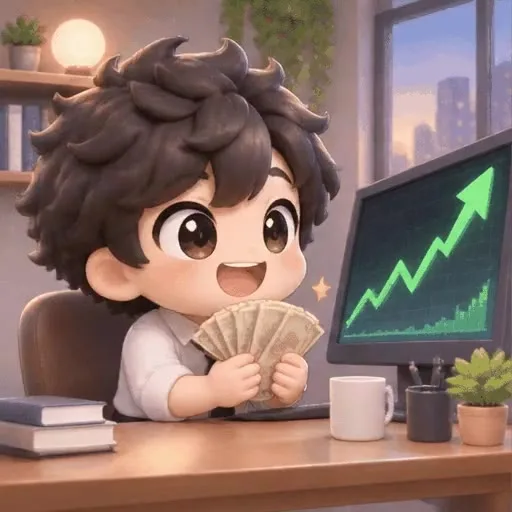
A still from the animated character watching a rising chart on a monitor.OpenArt / OpenAI · animation poster
Official examples: Picsart, fal, OpenAI and OpenArt · November 4, 2026
Source: OpenAI — Introducing Images 2.6
Start Creating

Prompt guide

How to Write Better GPT Image 2.6 Prompts

Write a structured brief and refine it with focused follow-ups. These prompt principles work across the GPT Image family; check each model’s supported features.

Prompt 01

Describe the Subject and Composition

Start with the subject and action, then add setting, camera distance, perspective, lighting, mood, and where key elements belong. If copy will sit above the subject, reserve that space in the brief.

Prompt 02

Specify Text, Layout, and Style

Put exact wording in quotation marks, specify where it belongs and describe the visual hierarchy. Always check important copy character by character.

Prompt 03

Lean on Multi-Turn Edits

Name the element to change, the intended result and the details to preserve. Smaller, focused requests make it easier to judge whether a revision solves the problem.

Model comparison

GPT Image 2 vs 2.5 vs 2.6

OpenAI Image 2, OpenAI Image 2.5 and OpenAI Image 2.6 are common search terms for the GPT Image family. Compare official model capabilities separately from the models enabled in this studio.

01

GPT Image 2.6: Flare and Sunburst

The 2.6 release introduces further editing improvements, markup-guided changes, GIF workflows and API SVG output. Read the official release and model documentation for the exact supported surfaces.

02

GPT Image 2.5: The Previous Release

GPT Image 2.5 introduced Flare and Sunburst choices with an emphasis on image quality, reference fidelity and editing. Its model guide remains available on Open AI Image.

03

GPT Image 2: Generation and Editing

Choose GPT Image 2 in the model picker for text-to-image generation or reference-led editing.

FAQ

Frequently Asked Questions About GPT Image 2.6

Release details, available models, official examples and practical image workflows.

GPT Image 2.6 · Official release November 4, 2026

Create AI Images on Open AI Image

Explore GPT Image 2.6, then create with the image and video models currently available on Open AI Image.

Start Now